
How to Limit Responses in Google Forms
Google Forms is a versatile tool that can be used to create surveys, quizzes, and other data collection forms.Limiting responses in Google Forms can be a useful way to control the amount of data that you collect and to ensure that everyone has an equal chance to respond to your form.
Google Forms offers a built-in feature to restrict responses by Google account, ensuring each respondent can submit only one response. Here’s how to set it up:
- Create a Google Form: Start by creating a new Google Form or opening an existing one.
- Go to Google Form’s Settings Tab: Click the gear icon at the top-right corner of the form.
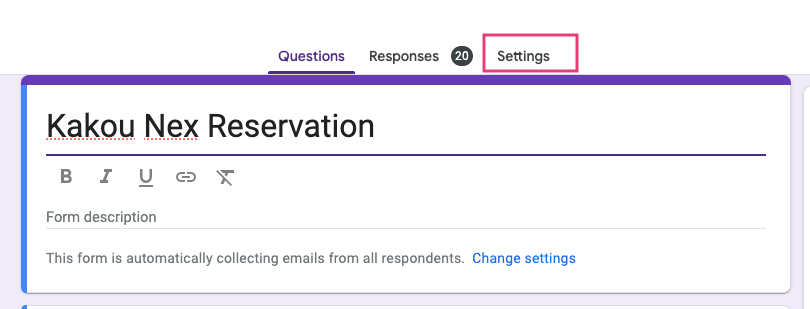
- Select “Responses” Settings: In the settings menu, go to the “Responses” section and enable the “Limit to 1 response” option.
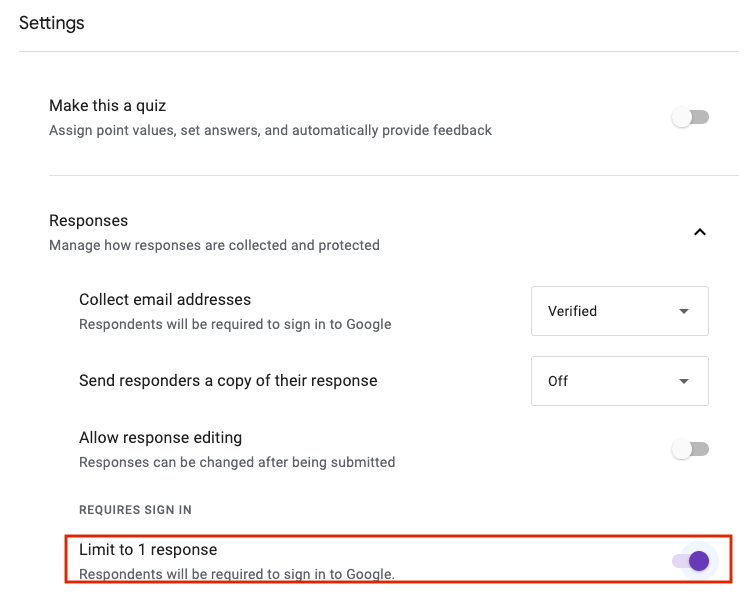
After enabling the “Limit to 1 response” option, be sure to click “Save” to apply the changes. Your Google Form will now restrict responses to one per Google account. If someone attempts to submit multiple responses using the same account, the form will automatically block them.
Using an Add-On to Limit Responses in Google Forms
Sometimes, you may need more advanced restrictions or specific conditions for limiting responses. Google Forms can achieve this with add-ons. Our add-on, “Light Form,” offers additional flexibility. Here’s how to use it:
- Open your Google Form, click on the “Add-ons” menu, and select “Get add-ons.”

- In the Google Workspace marketplace, search for “Form Limiter” and install it.
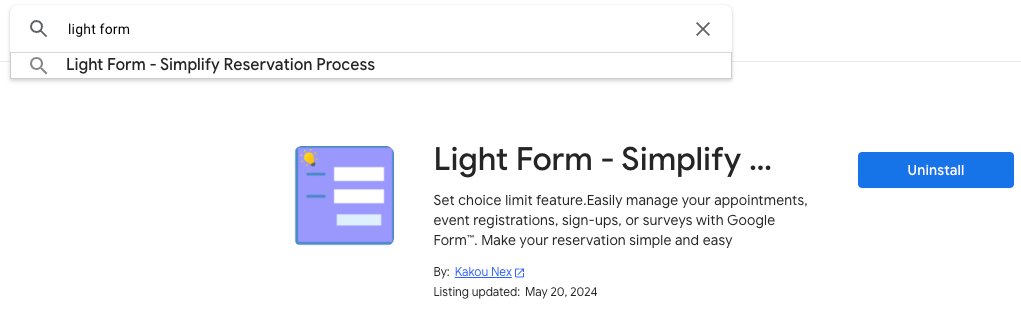
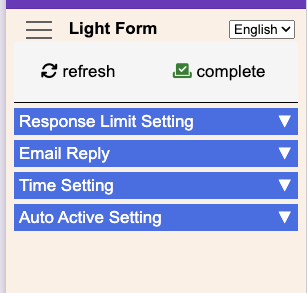
- After installation, return to your Google Form. In the top-right corner, you’ll now see the “Light Form” icon. Click on it to access the add-on.

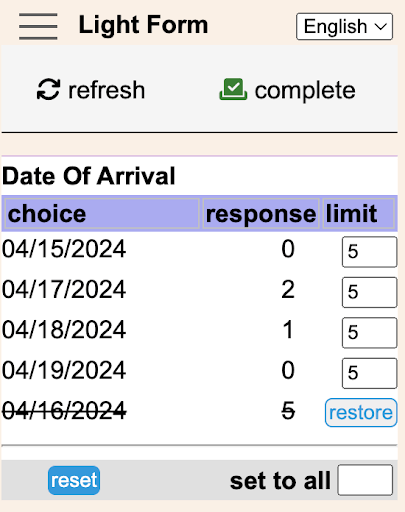
- Within the Light Form add-on, you can set specific limitations, such as a fixed number of responses, a date and time range for accepting responses, or a combination of both.
Effectively limiting responses in Google Forms is crucial for managing data collection and ensuring accuracy. By following the steps in this guide, you can easily restrict responses based on your Google account, use add-ons for advanced limitations, or manually control when your form stops accepting responses. Choose the method that best suits your needs and enjoy more efficient data collection with Google Forms.


 Kakou Nex
Leave a comment